


Applicable Scope
This guide applies to Gate Web
Before you start: Ensure you have enabled Google Authenticator or Gate Authenticator and set your fund password
Estimated time: 3 m
Objective
This guide will walk you through how to add and manage whitelisted withdrawal addresses on Gate Web.
Steps
Step 1: Navigate to the Withdrawal Page
- Log into your Gate account.
- Click "Assets" → "Funds Management" → "Withdraw" → "Onchain".
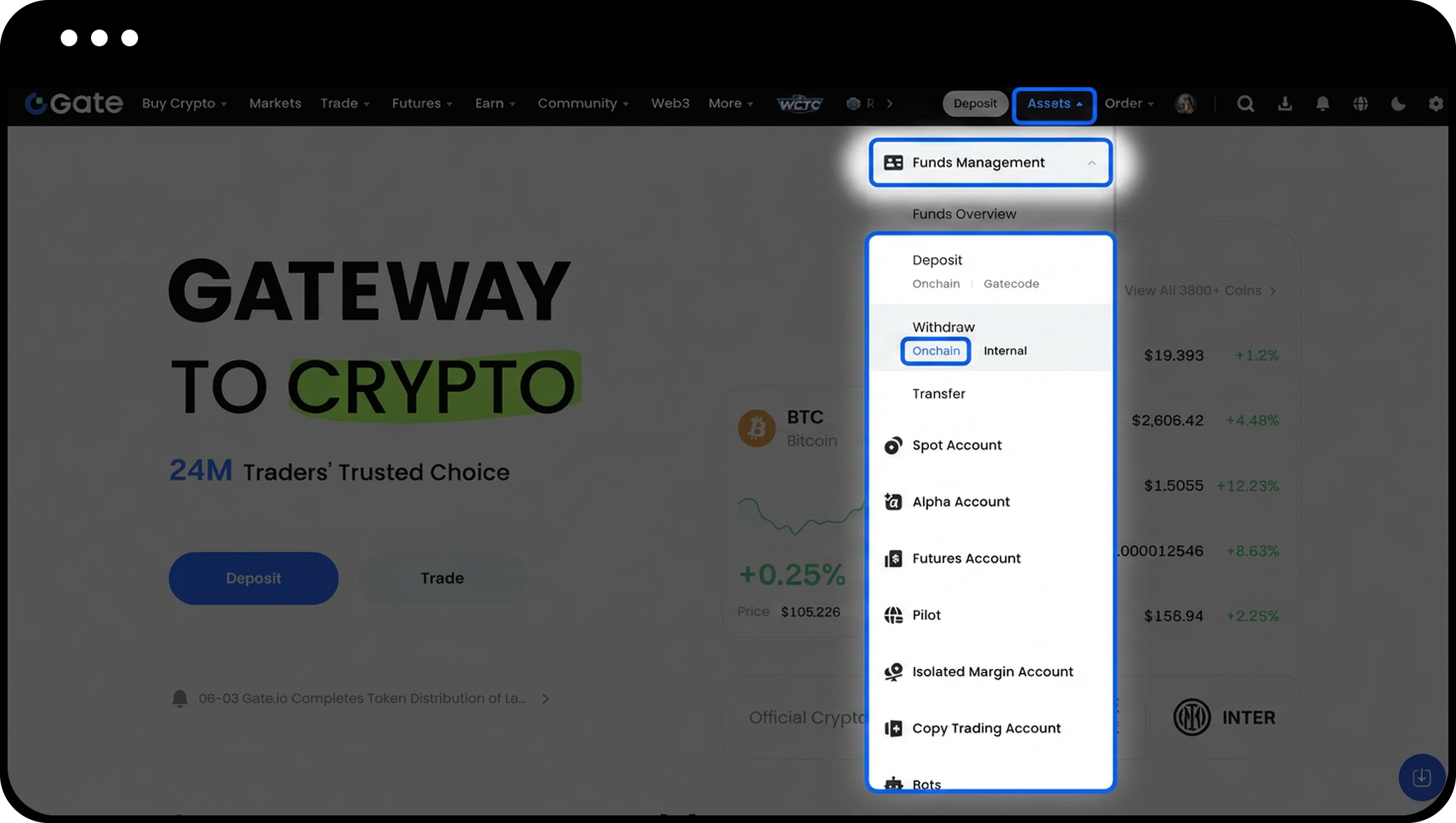
Step 2: Access Address Management
Click the "Manage Addresses" button on the withdrawal page.
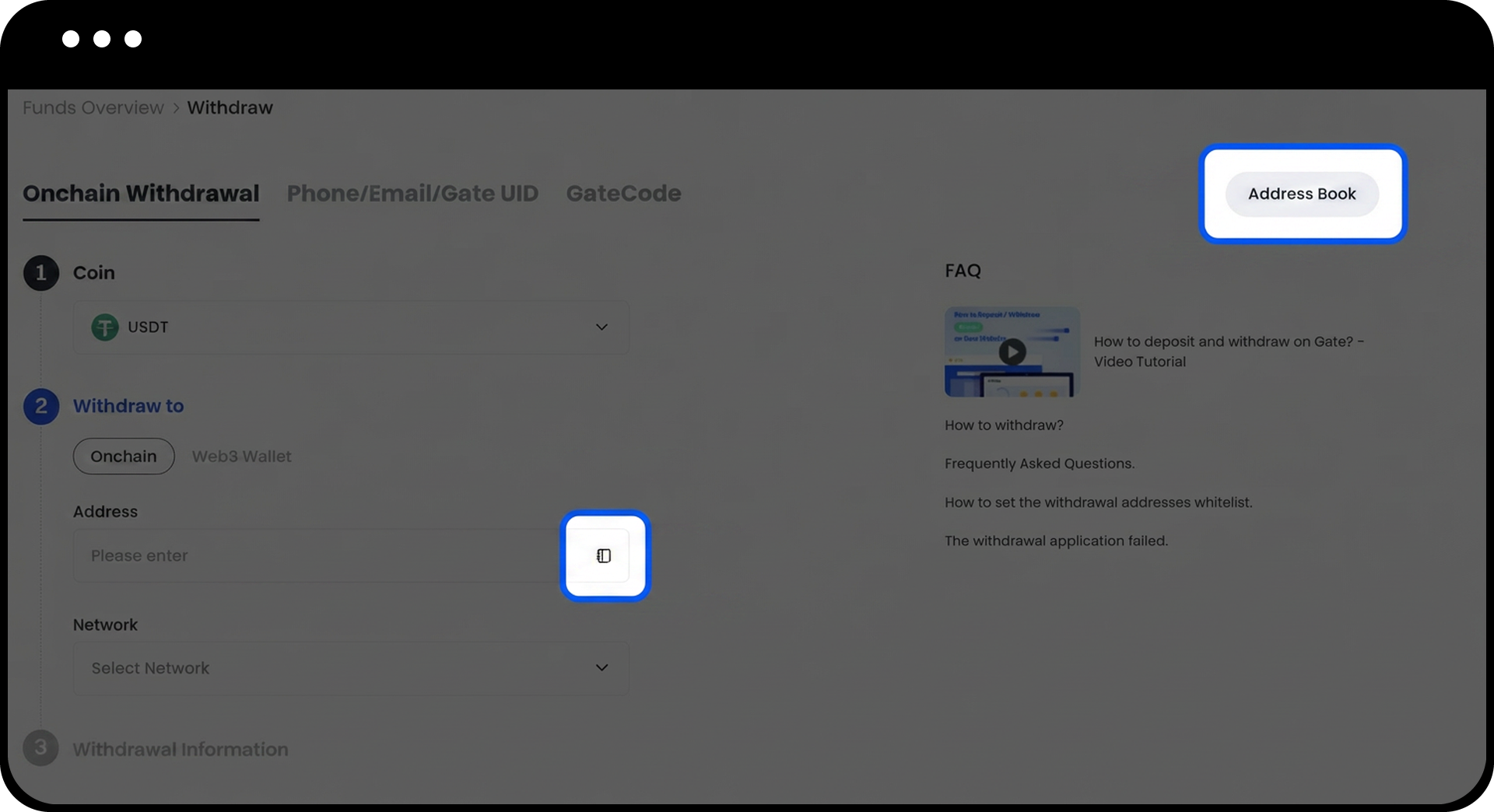
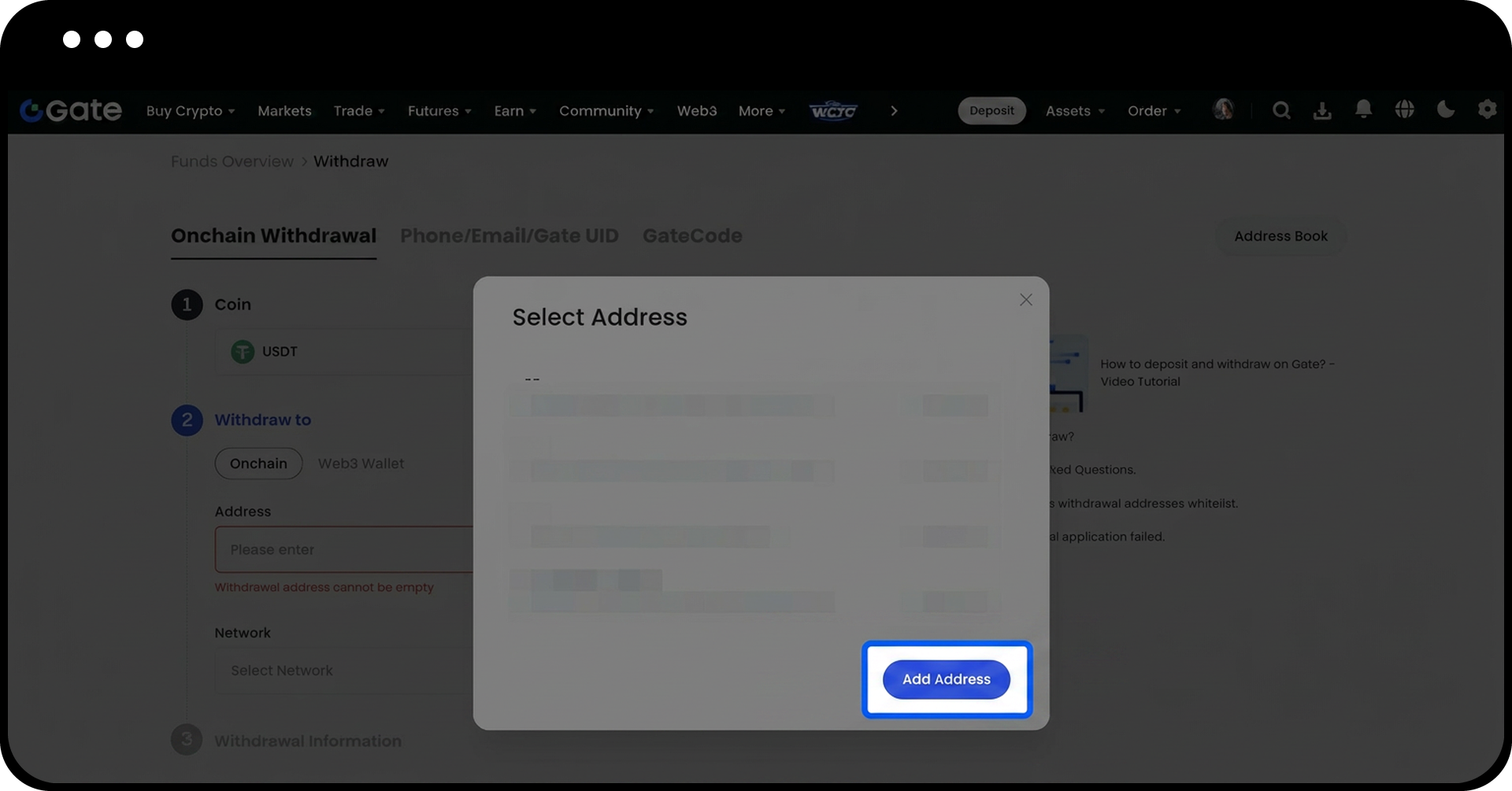
Step 3: Initiate Adding a New Address
Click the "Add Address" button on the manage addresses page.
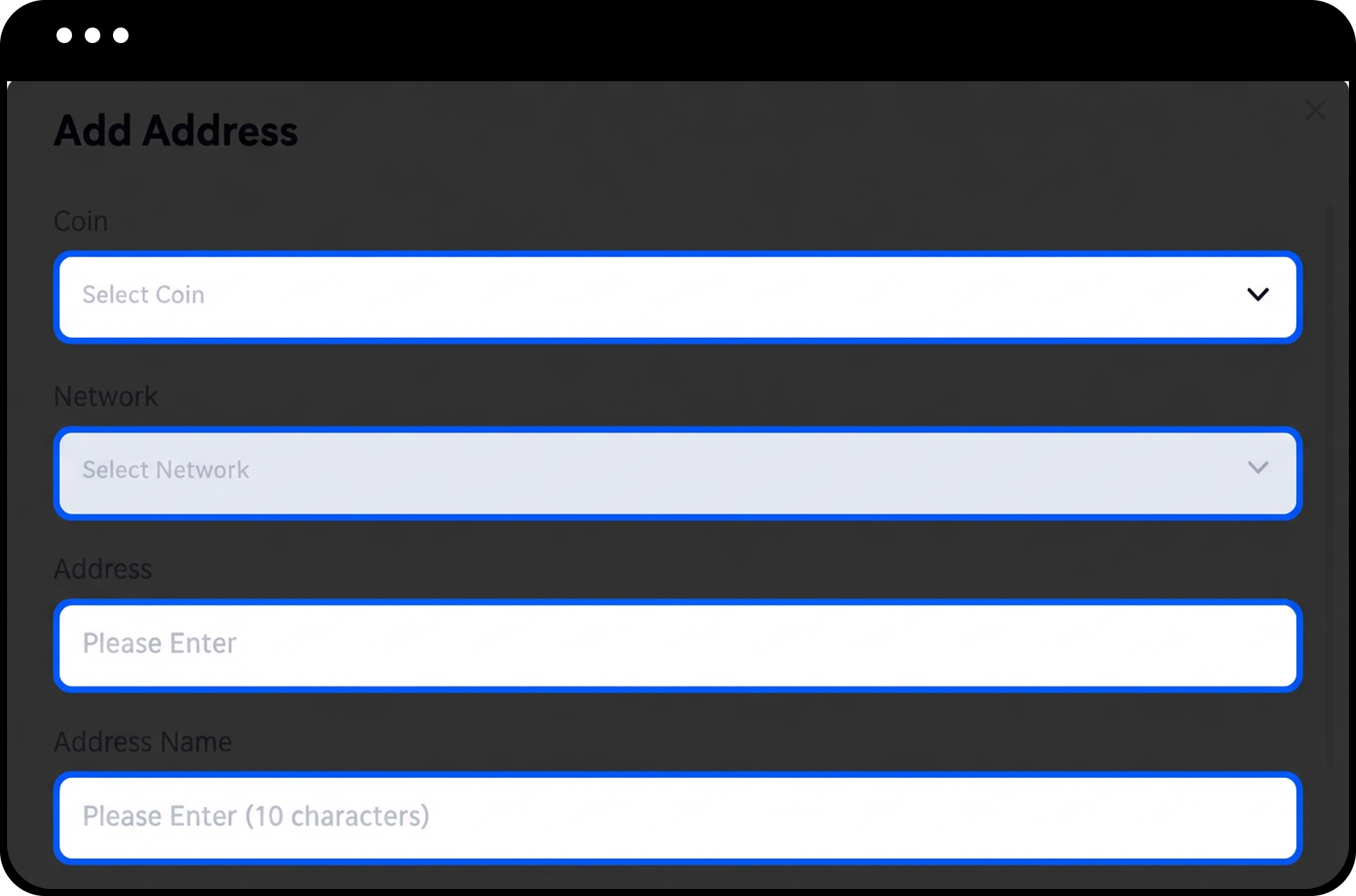
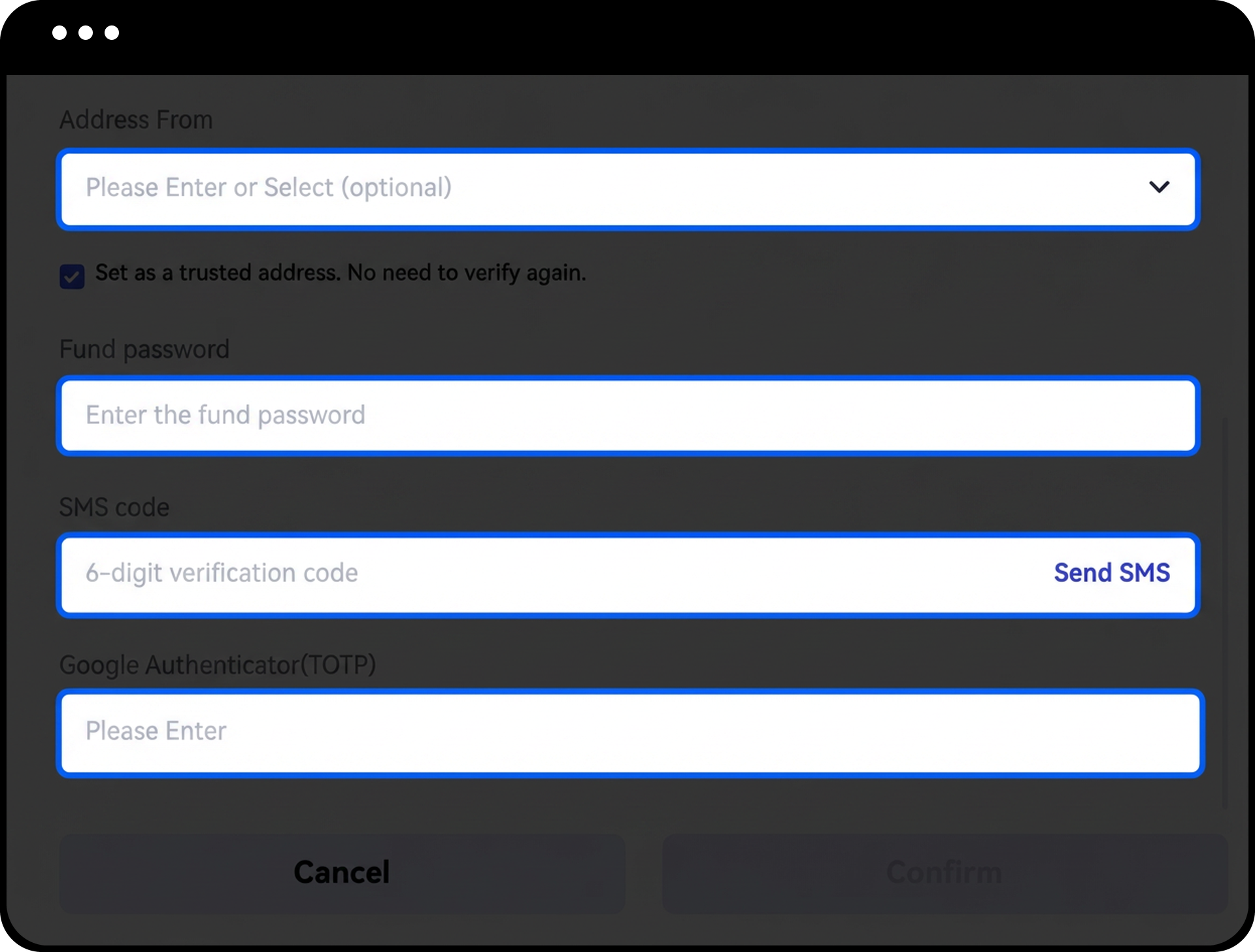
Step 4: Configure the Withdrawal Address
- Select the coin and network.
- Enter the withdrawal address and address name.
- Enter your fund password and Google authenticator code.
- (Optional) Check the "Set as a trusted address. No need to verify again" box to skip verification for future withdrawals to this address.
- Click "Confirm" to complete the process.
Step 5: Manage Existing Addresses
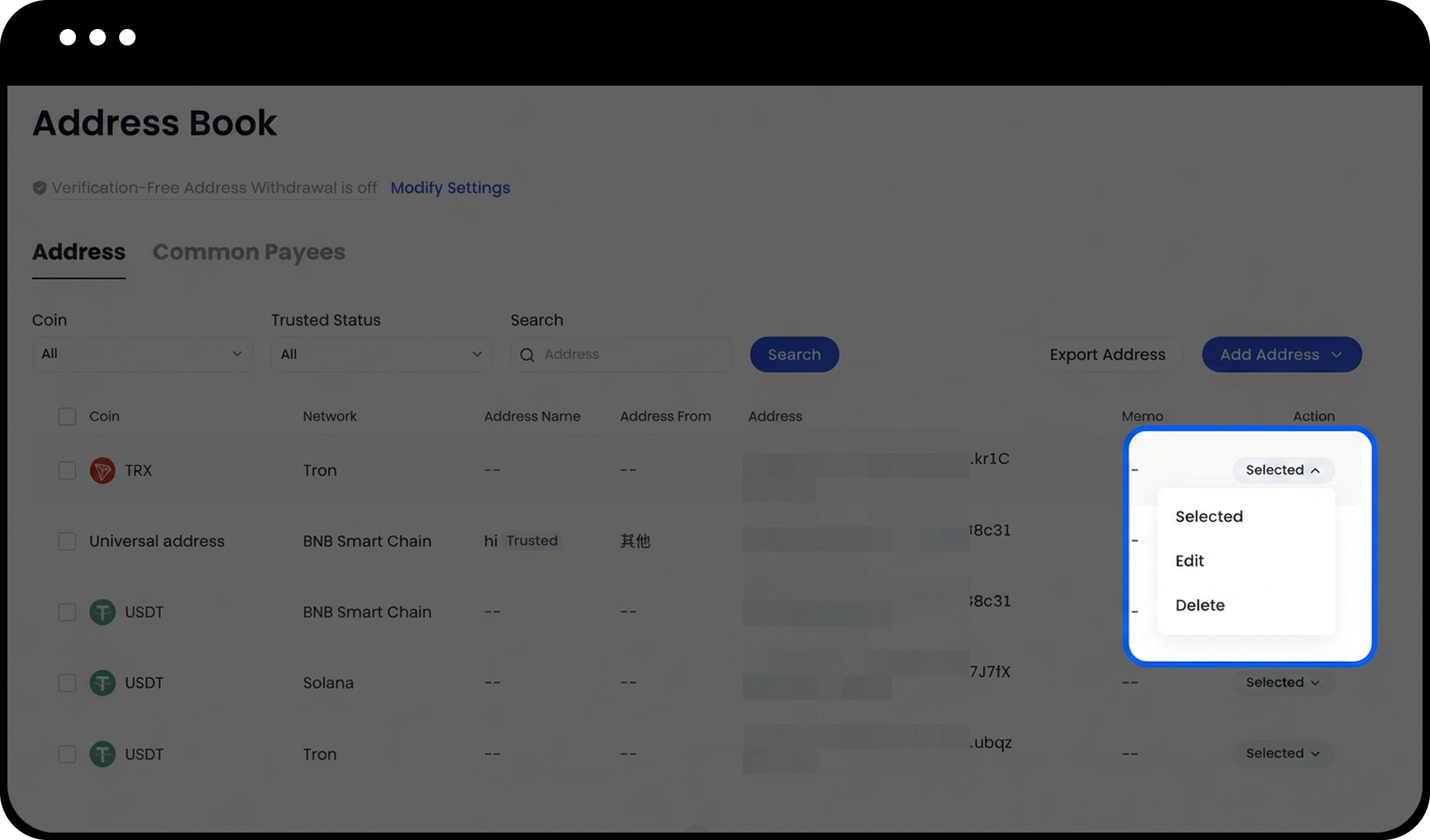
After successfully adding addresses, you can:
- View all saved addresses on the address management page
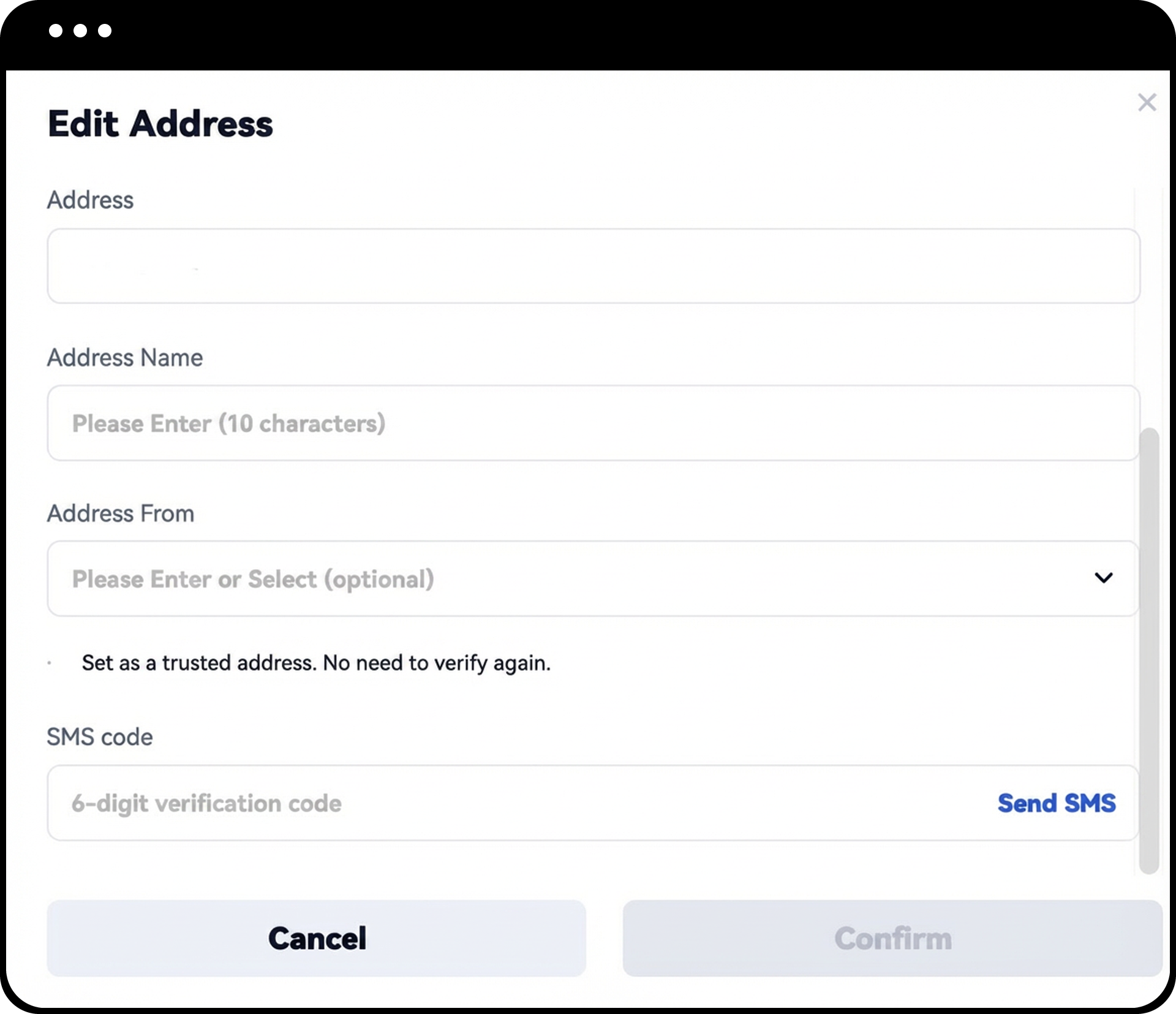
- Click "Edit" to modify address information or set an existing address as trusted
- Click "Delete" to remove addresses you no longer need
Step 6: Add Multiple Addresses (Optional)
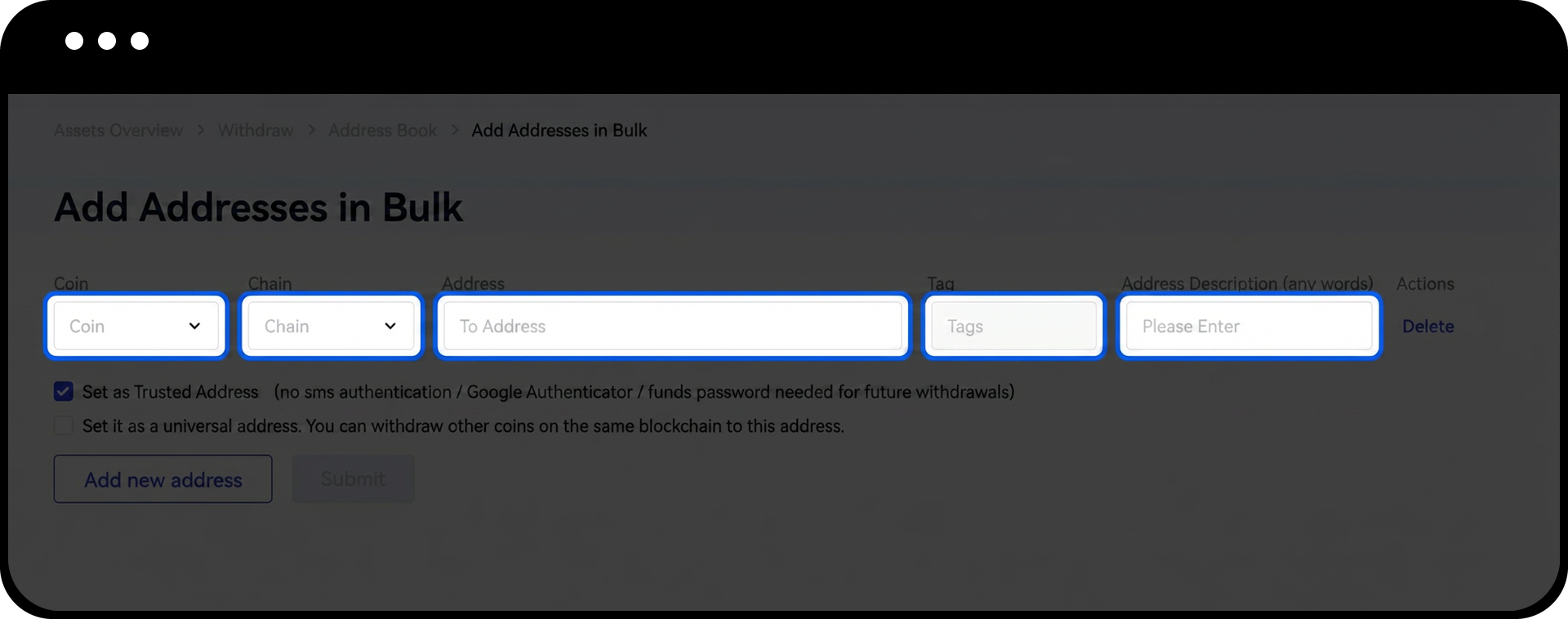
- Click "Add multiple addresses" on the manage addresses page.
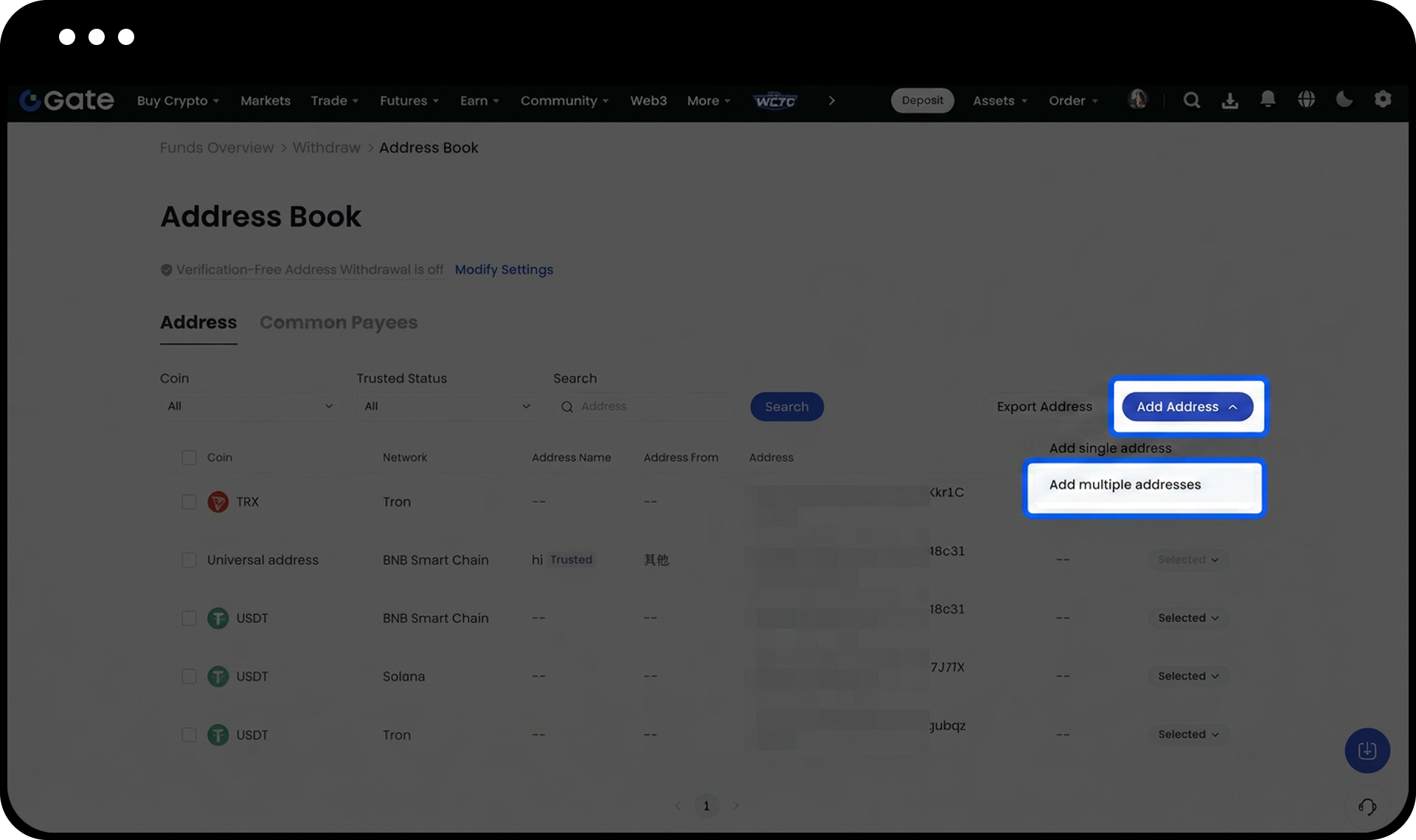
- Enter the following information for each address:
- Coin
- Chain
- Address
- Tag (leave blank if not required)
- Address Description
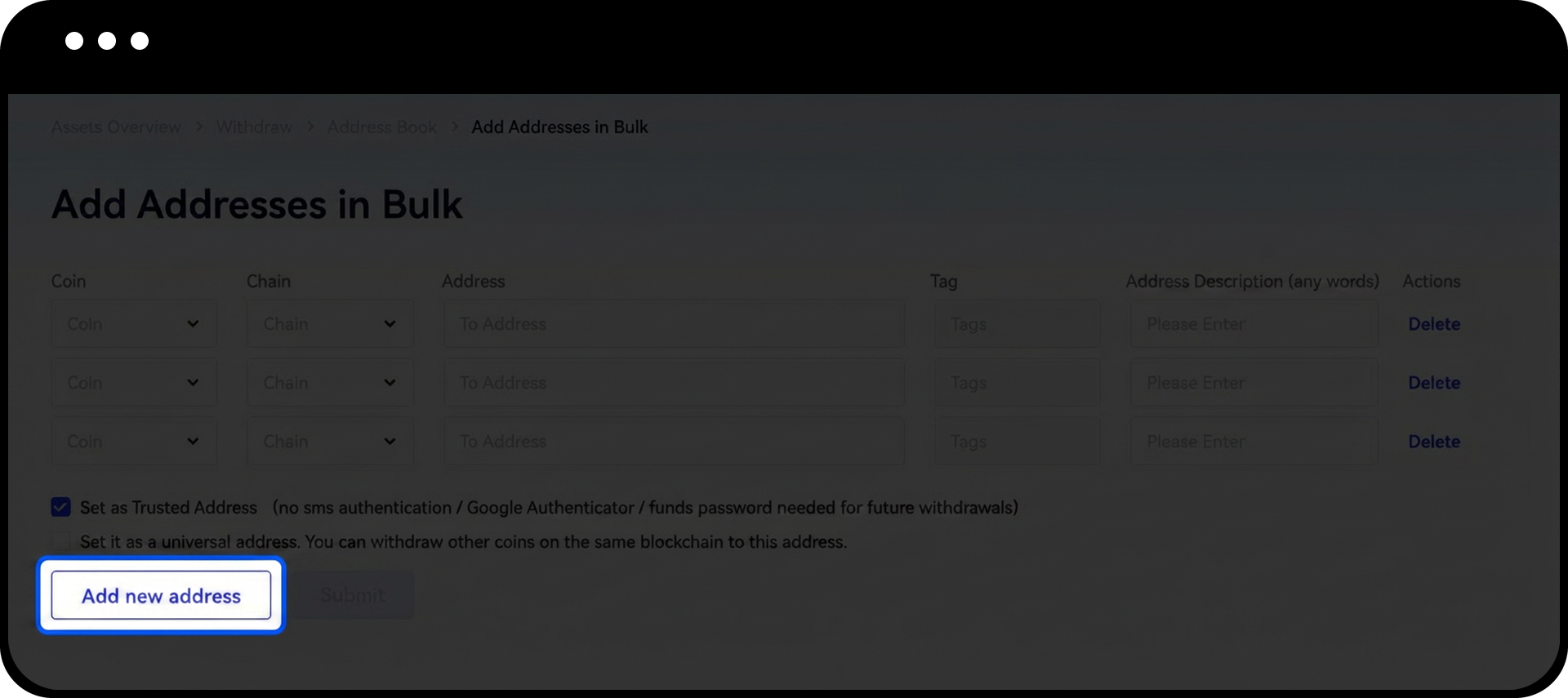
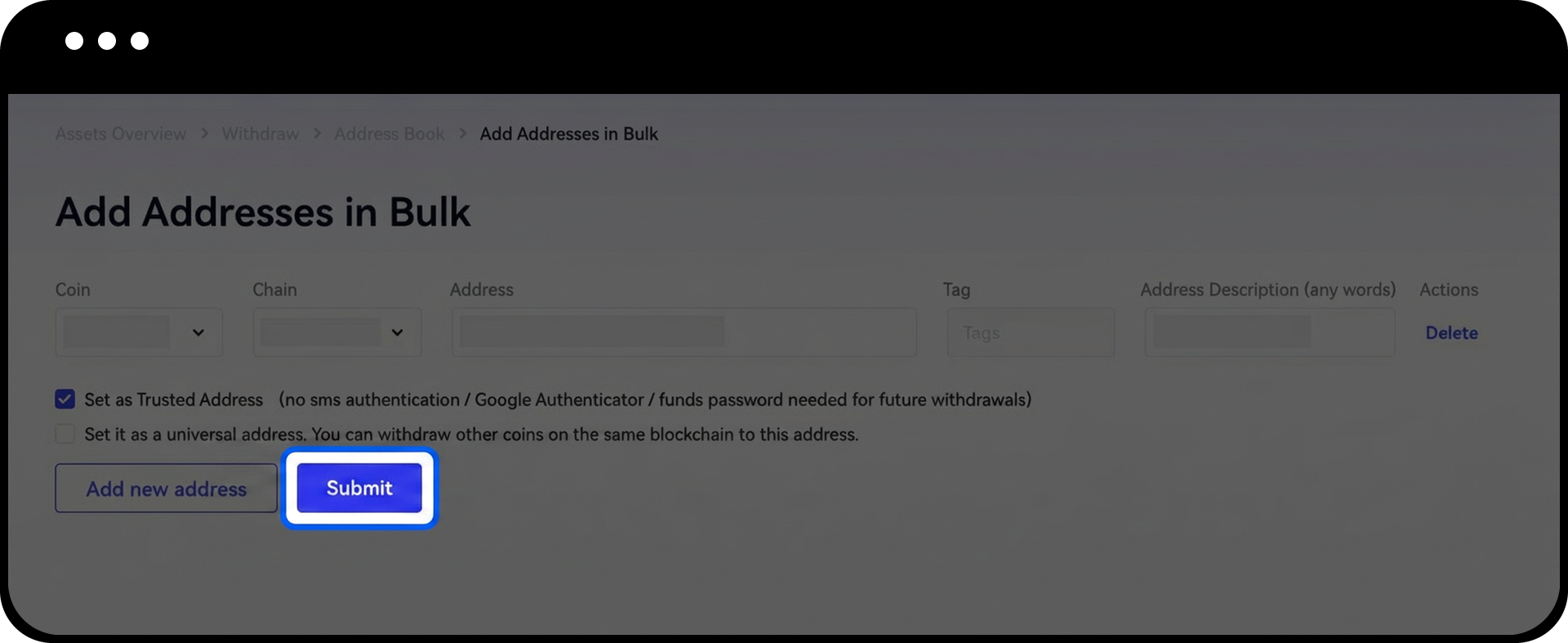
- Click "Add new address" to add more addresses in the same batch.
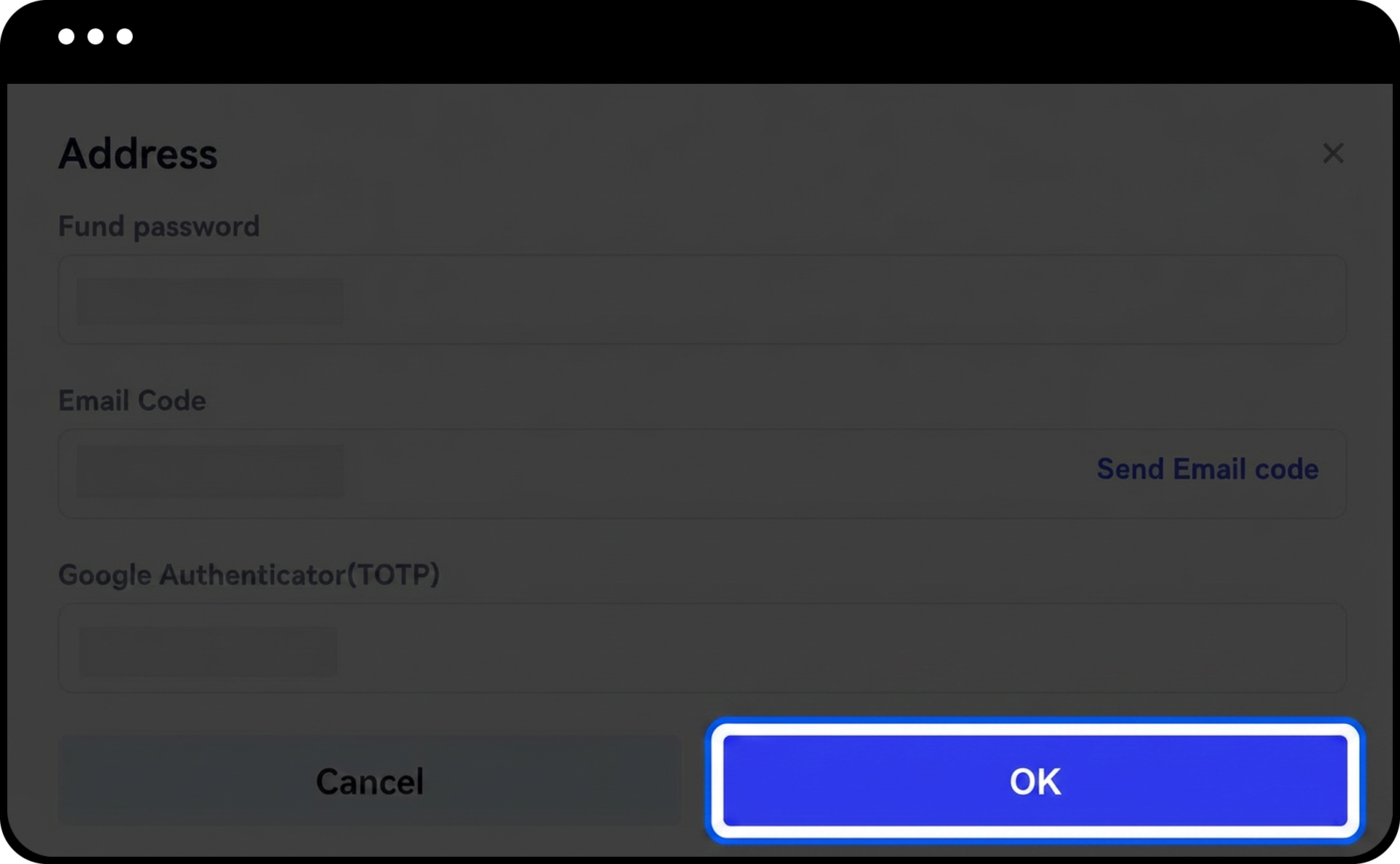
- Enter your fund password and Google Authenticator code.
- Click "OK" to add all addresses.
Notes
- Trusted addresses bypass regular verification processes including SMS verification code, email verification code, Google/Gate authenticator code, and fund password when making withdrawals.
- Only add addresses to your trusted address book if you are absolutely certain of their security and ownership.
- Addresses that have not been set as trusted or those to which you have successfully withdrawn coins will be displayed in the address management page.
- When adding addresses in bulk, you can configure the trusted address setting for each address individually.
- Address whitelist settings may be subject to additional security measures depending on your account security level and withdrawal amount.
FAQ
Q1: What is the difference between a regular saved address and a trusted address?
A: Regular saved addresses still require verification (SMS, email, authenticator codes, and fund password) for each withdrawal. Trusted addresses skip these verification steps, allowing faster withdrawals but requiring higher security confidence.
Q2: Can I convert a regular saved address to a trusted address later?
A: Yes, you can edit any existing saved address and check the "Set as a trusted address. No need to verify again" box to convert it to a trusted address.
Q3: How many addresses can I add to my whitelist?
A: Gate does not specify a strict limit for whitelisted addresses. However, it is recommended to only whitelist addresses you frequently use and trust completely for security purposes.
Q4: What should I do if I accidentally delete a whitelisted address?
A: You can add the address again by following the steps in this guide. You will need to go through the verification process again when adding it back.
Disclaimer
The content provided herein is for reference and educational purposes only and does not constitute any financial, investment, trading, or legal advice, nor does it constitute an offer or solicitation to buy or sell any digital assets. Gate makes no express or implied representations or warranties regarding the accuracy, completeness, or timeliness of the information contained herein. Product features, interfaces, rules, and fee structures may be updated or adjusted at any time. Please refer to the latest announcements and the actual information displayed on the Gate platform for the most accurate details.
Digital asset investments involve significant risk, and prices may fluctuate substantially. You may lose the entire amount of your investment. Please make decisions cautiously based on your own financial situation and risk tolerance after fully understanding the associated risks. If necessary, you are advised to consult an independent professional financial or legal advisor.
For more information about potential risks, please refer to Gate's Risk Disclosure and User Agreement.
