


Applicable Scope
This guide applies to Gate Web
Before you start: Ensure you have an active futures trading account with sufficient balance
Estimated time: 5 m
Objective
This guide will walk you through how to set Take Profit and Stop Loss (TP/SL) conditions for futures trading on Gate Web.
Steps
Step 1: Understand TP/SL Order Types
Gate supports five types of TP/SL orders:
- Order TP/SL: Attached to new orders when opening positions. Automatically places TP/SL orders once the position-opening order is filled.
- Entire Position TP/SL: Closes the complete position when trigger conditions are met.
- Partial Position TP/SL: Closes a specified amount of an existing position when triggered.
- Trailing TP: Automatically adjusts the trigger price by tracking market movements.
- MMR Stop-Loss: Stop-loss based on Maintenance Margin Rate to manage account risks.
Step 2: Choose Your Trigger Price Type
Select the appropriate trigger price type based on your trading strategy:
| Trigger Price Type | Definition | Best Used For |
|---|---|---|
| Last Price | The most recent fill price in the market | Standard market conditions |
| Mark Price | A calculated reference price to prevent manipulation | Volatile or low-liquidity markets |
| Index Price | Average price from multiple exchanges | Cross-exchange arbitrage strategies |
Step 3: Set TP/SL When Opening a Position
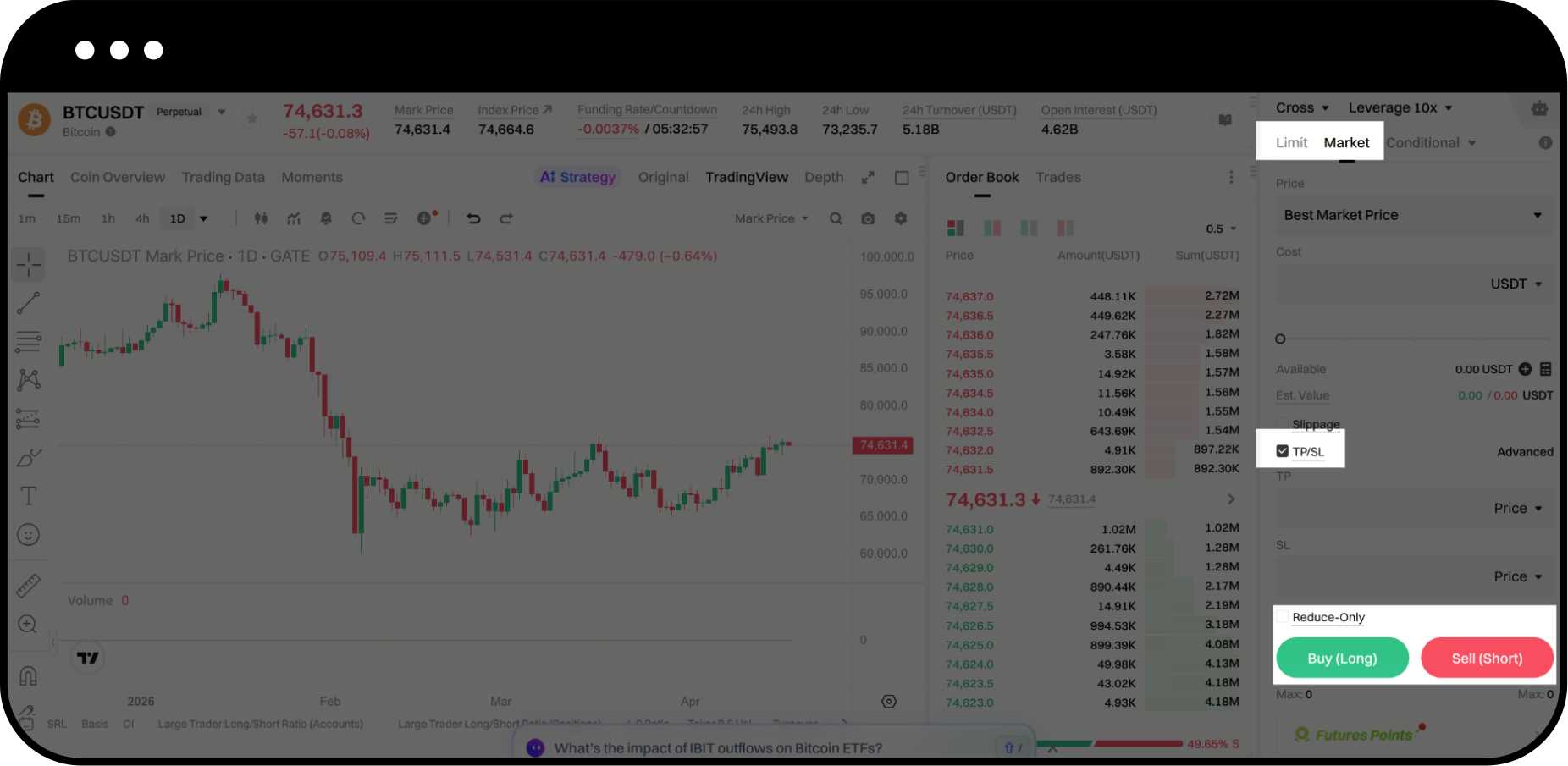
- Navigate to the futures trading page and select your trading pair
- Choose either Market or Limit order type in the order placement section
- Click TP/SL to enable TP/SL settings
- Select Buy (Long) or Sell (Short) based on your position direction
- Set your trigger prices:
- For Take Profit: Set a price above your entry price (for long) or below (for short)
- For Stop Loss: Set a price below your entry price (for long) or above (for short)
- Select your preferred trigger price type (Last Price/Mark Price/Index Price)
- Enter your order amount and price
- Click Buy (Long) or Sell (Short) to submit
Step 4: Set TP/SL for Existing Positions
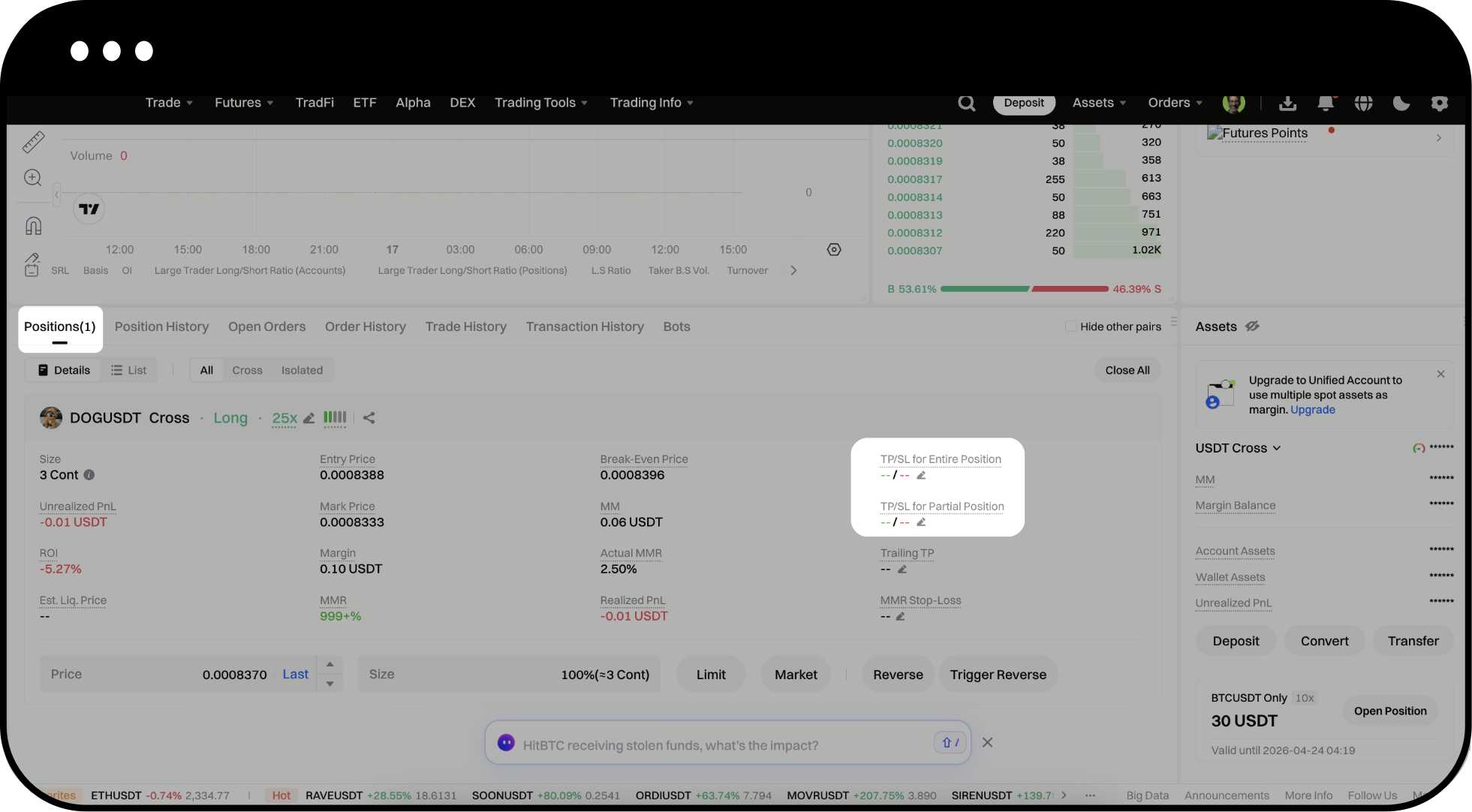
Method 1: From Position Tab
- Locate your open position in the Position tab
- Find the TP/SL column and click the edit icon
- Configure your TP/SL parameters
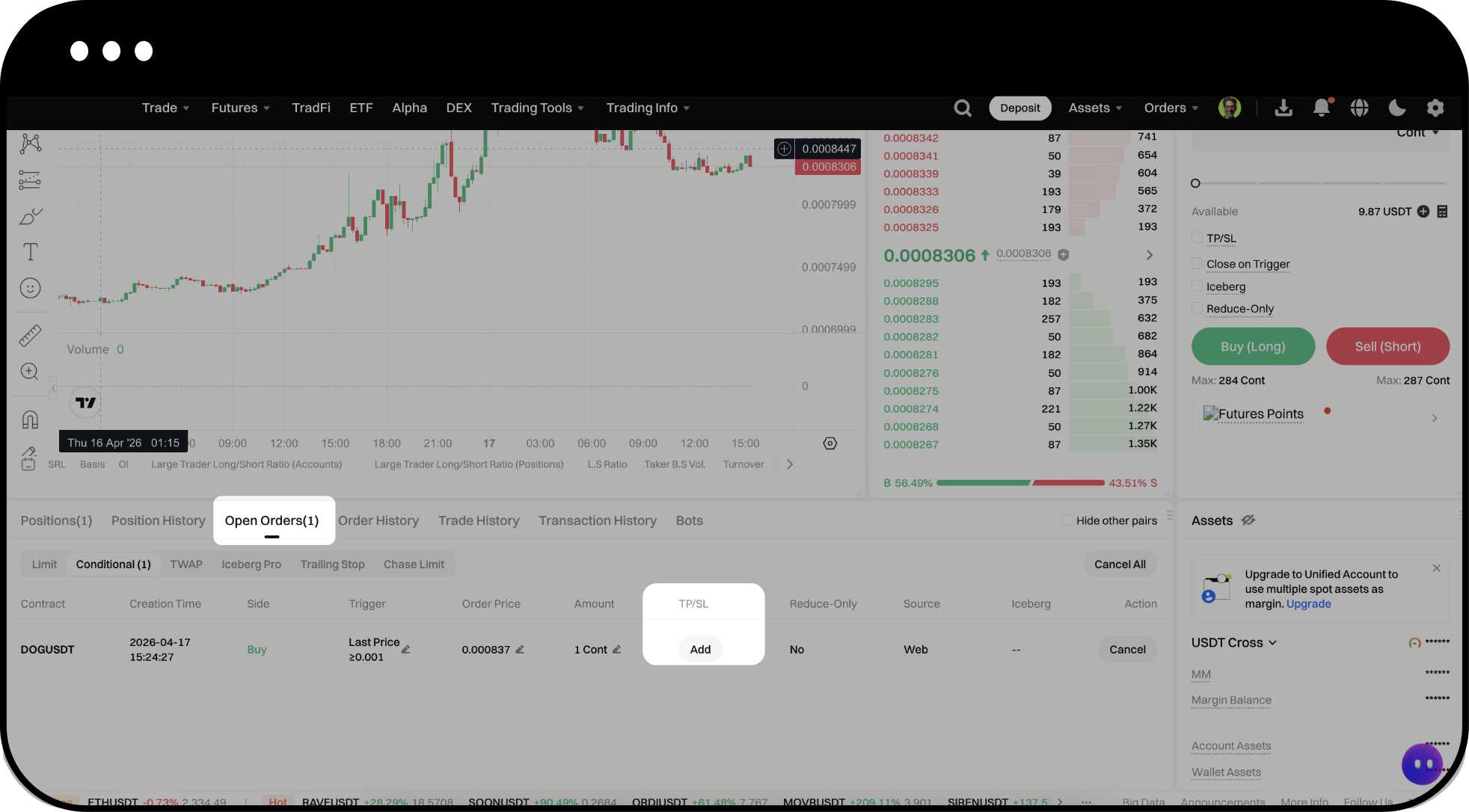
Method 2: From Open Orders
- Navigate to Open Orders section
- Find TP/SL and click Add
- Select your desired TP/SL type (Order TP/SL/Position TP/SL/Trigger TP/SL)
- Check TP or SL boxes as needed
- Select trigger price type and set your trigger conditions
- Choose to set conditions by price or return percentage
- Confirm your settings
Notes
- Assets in your futures account are not locked as margin until TP/SL orders are triggered. Ensure sufficient available balance to avoid order failures.
- The actual execution price may differ from the trigger price, especially during high volatility periods.
- If you manually close a position, all associated TP/SL orders will be automatically canceled.
- TP/SL orders are flagged as "reduce-only" and will not open positions in the opposite direction.
- Setting your stop-loss trigger price sufficiently far from the liquidation price improves execution success rate.
- Futures trading with leverage amplifies both potential profits and losses significantly.
- Gate may update product features, interfaces, and fee structures at any time.
- Digital asset trading involves substantial risk and you may lose your entire investment.
FAQ
Q1: Why wasn't my TP/SL order triggered even though the market price reached my trigger level?
A: TP/SL orders can be triggered by Last Price, Mark Price, or Index Price. These three prices are not always identical. Verify that the trigger price type you selected actually reached your preset level. Additionally, market depth limitations, trading halts, or system issues may prevent triggering.
Q2: Why is my TP/SL execution price different from the market price I saw?
A: If you set a Market Order for TP/SL execution, the system matches your order against the best available prices in the order book. For large orders, the system may need to match across multiple price levels, causing slippage. The average fill price may differ from the last price displayed on charts.
Q3: Why did my TP/SL order fail to execute after being triggered?
A: Common reasons include:
- In Cross margin mode, the calculated closing price would fall below the bankruptcy price
- Extreme volatility caused the price to move past your trigger level so quickly that liquidation occurred simultaneously
- The TP/SL order size exceeds your current position size
- Manually reducing your position made the preset TP/SL amount larger than your remaining holdings
Q4: What's the difference between setting TP/SL by price versus return percentage?
A: Setting by price allows you to specify exact trigger price levels. Setting by return percentage automatically calculates trigger prices based on your desired profit or loss percentage from your entry price. Use price-based settings for specific price targets and percentage-based settings for risk-reward ratio strategies.
Disclaimer
The content provided herein is for reference and educational purposes only and does not constitute any financial, investment, trading, or legal advice, nor does it constitute an offer or solicitation to buy or sell any digital assets. Gate makes no express or implied representations or warranties regarding the accuracy, completeness, or timeliness of the information contained herein. Product features, interfaces, rules, and fee structures may be updated or adjusted at any time. Please refer to the latest announcements and the actual information displayed on the Gate platform for the most accurate details.
Digital asset investments involve significant risk, and prices may fluctuate substantially. You may lose the entire amount of your investment. Please make decisions cautiously based on your own financial situation and risk tolerance after fully understanding the associated risks. If necessary, you are advised to consult an independent professional financial or legal advisor.
For more information about potential risks, please refer to Gate's Risk Disclosure and User Agreement.
